The SynthesisVR Booking Widget is a web component that allows customers to book VR sessions online directly through a venue’s website. It connects the public booking interface with the SynthesisVR management system, providing real-time access to availability, experiences, and scheduling rules configured through the SynthesisVR Web Console.
The widget displays available time slots, enables users to select experiences, session duration, and the number of stations, and automatically creates reservations in your SynthesisVR Web dashboard once a booking is completed. It can be easily linked or embedded into an arcade’s website, giving customers quick and convenient access to online bookings.
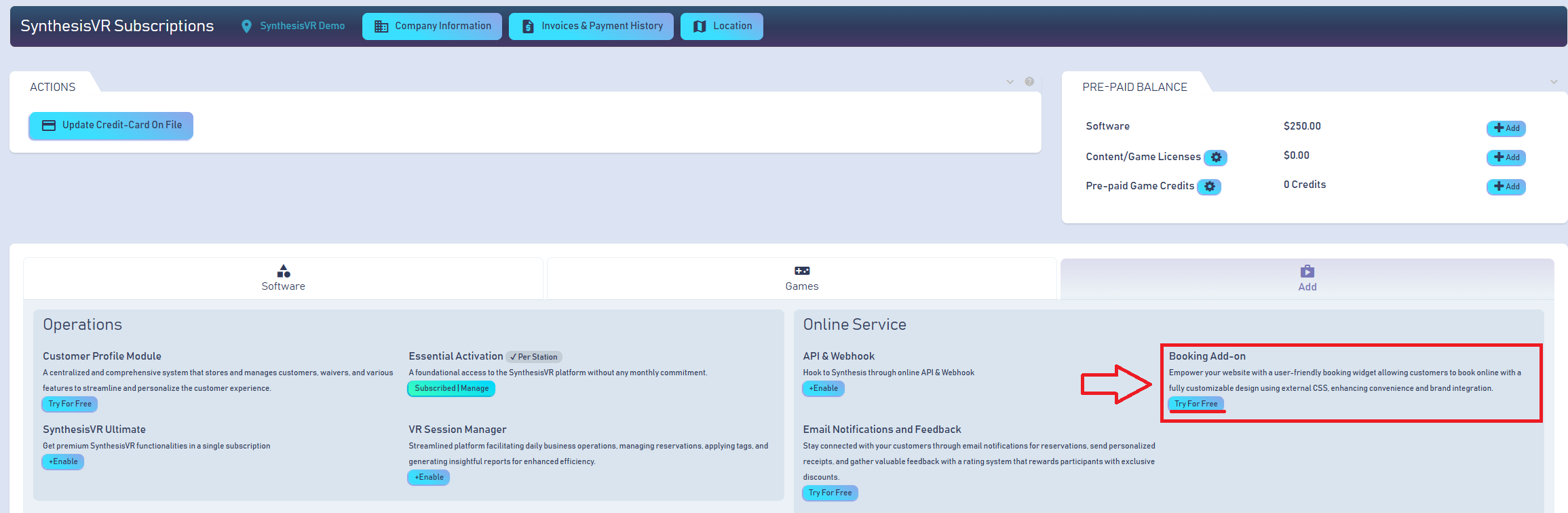
To activate the Booking Add-On in your SynthesisVR account, navigate to: Administration -> Billing -> Add
From there, enable the Booking Add-On. You can begin with the free test period to configure and validate the functionality and test the booking widget. Once setup is complete and you test the Booking Widget, you may switch to a paid plan and select how the Add-On should remain active for your SynthesisVR account.
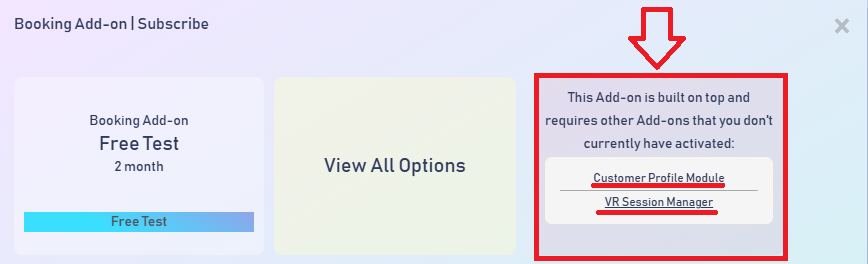
*Important: The Booking Add-On depends on additional modules that must already be active in your account. To enable and use the Booking Widget, the following Add-Ons are required:
- VR Session Manager
- Customer Profile Module
Ensure these required Add-Ons are enabled before activating the Booking Add-On.
Locate the Booking Widget settings
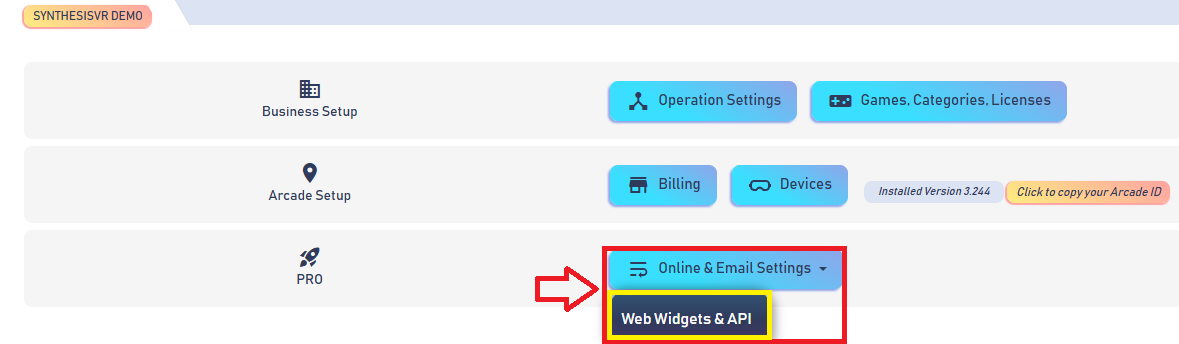
Once the Booking Widget Add-On is active on your SynthesisVR account, return to Administration.
A new section called Online & Email Settings -> Web Widgets & API will appear, where all configuration options related to the Booking Widget integration will be available.
Create a new Booking Widget
Once you navigate to the Booking Widget page, you will see a “+†icon located in the top-right corner of the screen. Clicking this icon opens a pop-up window where you can create a new Booking Widget and configure its settings and booking rules.

Configure the new Booking Widget
1. General
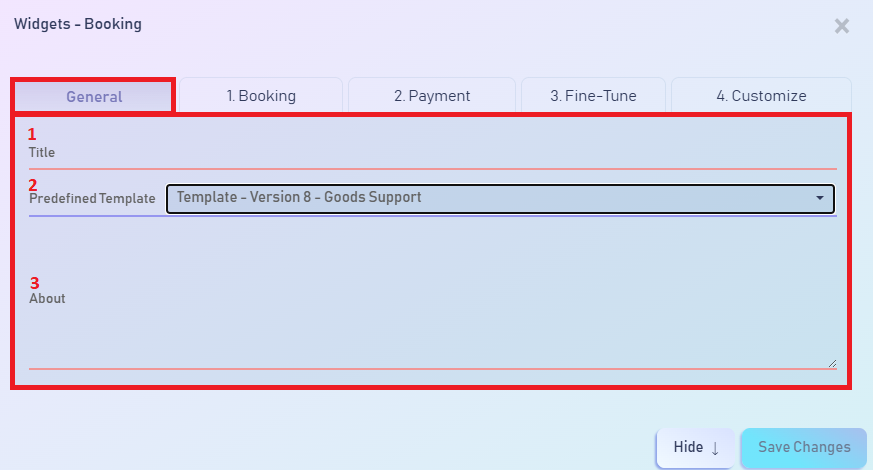
- Title - Enter a suitable name for your widget.
- Template - Always select the latest available template from the list to ensure compatibility.
- About - Add a description of your Booking Widget. This text will be displayed on the booking page and will be visible to your customers.
2. Booking
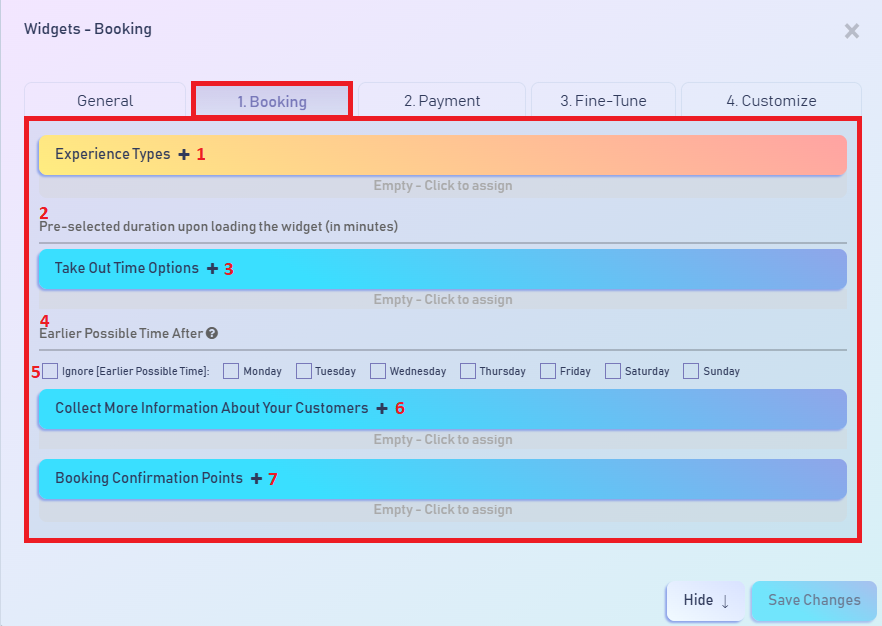
- Experience Type - Select the experience(s) from the dropdown menu that will be used for the Booking widget. Multiple experiences can be added to the same widget. Use the Experience Types + button to include additional experiences.
- Pre-Selected Duration - Defines which predefined session duration is selected by default when a customer opens the Booking Widget.
- Take Out Time Options - Allows you to disable and hide specific session durations defined in the selected Experience Types so they are not displayed in the Booking Widget.
- Earliest Possible Time After - Specifies the minimum time interval required before a customer can book a session after opening the Booking Widget.
- Available Days - Select the days on which the Booking Widget will be active and available for customers to make reservations.
- Collect More Information About Your Customers - By default, customers provide Email, Password, and Full Name when reserving a booking. This option allows you to add additional custom fields to collect more information. All added fields are standard text inputs.
- Booking Confirmation Points - Create mandatory confirmation checkboxes that customers must accept before completing a booking. For example: “I agree to arrive 15 minutes before my session startâ€.
3. Payment
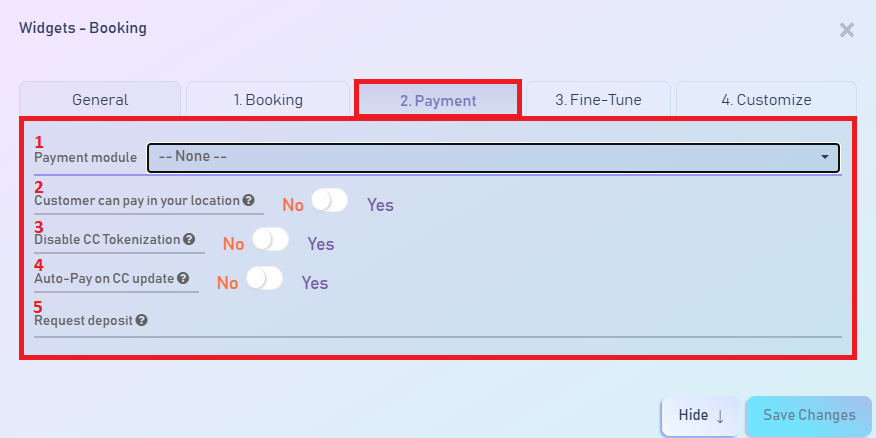
- Payment Module - SynthesisVR supports integration with multiple merchant processors. Select the appropriate payment module used for processing online customer payments. If no module is selected, sessions will remain available for booking but will be paid on arrival at the arcade. The payment module must be configured in advance before it appears in the dropdown list.
- Customer Can Pay On-Site - Determines whether customers are allowed to pay at your arcade location instead of completing payment during the online reservation process through the selected payment provider. If the Payment Module is set to None, this option is always considered enabled.
- Disable CC Tokenization - Prevents customer credit cards from being tokenized and enforces 3D Secure password verification instead. Supported providers: Square, Stripe.
- Auto-Pay on CC Update - Automatically charges the customer when they add or update their credit card details.
- Request Deposit - Allows you to define a mandatory deposit amount that the customer must pay in order to complete a reservation.
4. Fine-Tune
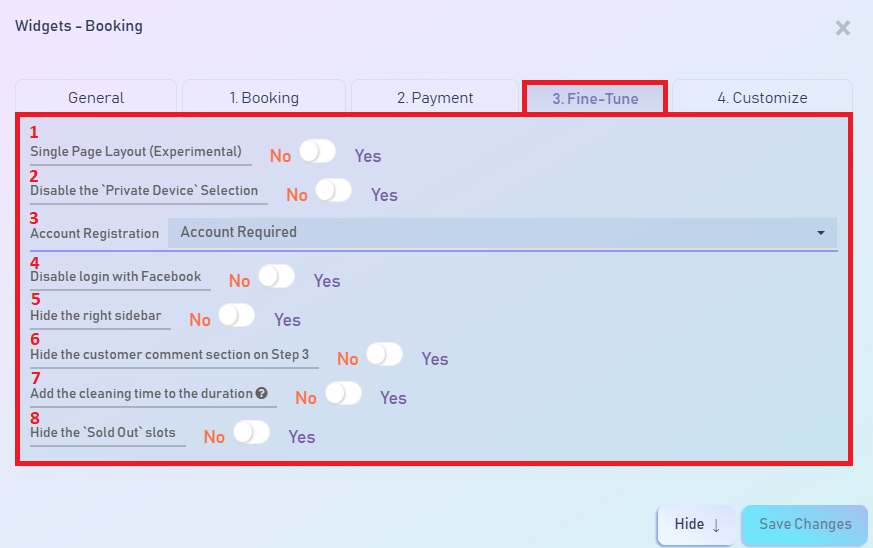
- Single Page Layout - Enables the Booking Widget to be displayed as a single-page layout instead of a multi-step reservation flow.
- Disable “Private Device†Selection - Prevents customers from hiding the device information used when making a reservation.
- Account Registration - Defines whether customers are required to create or log into an account to make a reservation, or if guest bookings are allowed.
- Disable Login with Facebook - Enables or disables the option for customers to log into the Booking Widget using their Facebook account.
- Hide Right Sidebar - Allows you to hide the right sidebar from the Booking Widget layout page.
- Hide Customer Comment Section - Removes the customer comment field where users can provide additional information during the reservation process.
- Add Cleaning Time to Duration - Includes the configured cleaning time in the total session duration calculation. Cleaning time is configured separately for each Experience Type.
- Hide “Sold Out†Slots - Removes fully booked time slots from the Booking Widget calendar view.
5. Customize
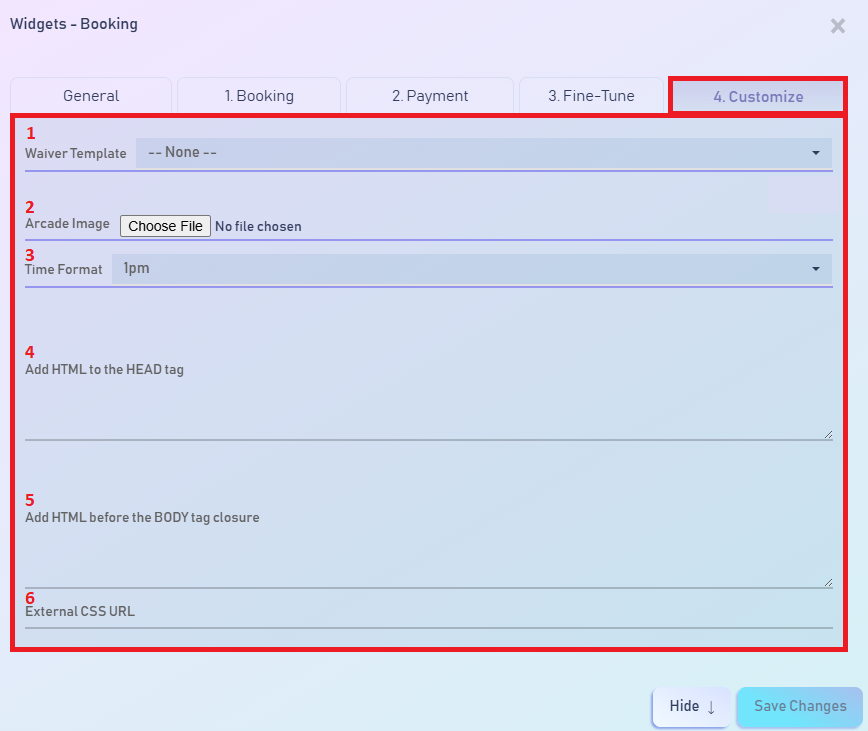
- Waiver Template - Allows you to add the option for your customers to accept a waiver before checkout. Select the appropriate waiver template from the dropdown menu. The default template is “waiver_textâ€.
- Arcade Image - Upload a logo or image representing your arcade. This image will be displayed across the Booking Widget pages for customers.
- Time Format - Defines the time format (e.g., 12-hour or 24-hour) shown within the Booking Widget.
- Add HTML Before the HEAD Tag - Allows you to insert custom HTML code into the <head> section of the Booking Widget page.
- Add HTML to the Body Tag Closure - Allows you to insert custom HTML at the end of the <body> tag.
- External CSS URL - Enables adding a custom CSS stylesheet for the Booking Widget. This can be used to match the widget’s appearance with your arcade’s website styling for a consistent visual design.
Once the Booking Widget is created, it will appear in a list alongside all other Booking Widgets on the page. This allows you to easily manage and track your widgets, including the Experience Types assigned to each one.

The information and options available in the list of created Booking Widgets include:
- Booking Widget Name - Displays the name assigned to each Booking Widget during setup.
- Experience Types - Shows all Experience Types currently assigned to the specific Booking Widget.
- Advanced - Provides an integration key for advanced or custom integrations beyond the standard options available through the Booking Widget Add-On.
- Open in Tab - Opens the Booking Widget in a new tab, allowing you to fully preview and test the booking flow exactly as customers will experience it.
- Embed Examples - Contains example implementations demonstrating how to embed the Booking Widget into an external website.
- Edit - Opens the Booking Widget settings, allowing you to modify any previously configured options.
- Translate - Allows translation of available and custom fields within the Booking Widget to support additional languages beyond the default English.
- Delete - Permanently removes the selected Booking Widget from your SynthesisVR account.
 US
US