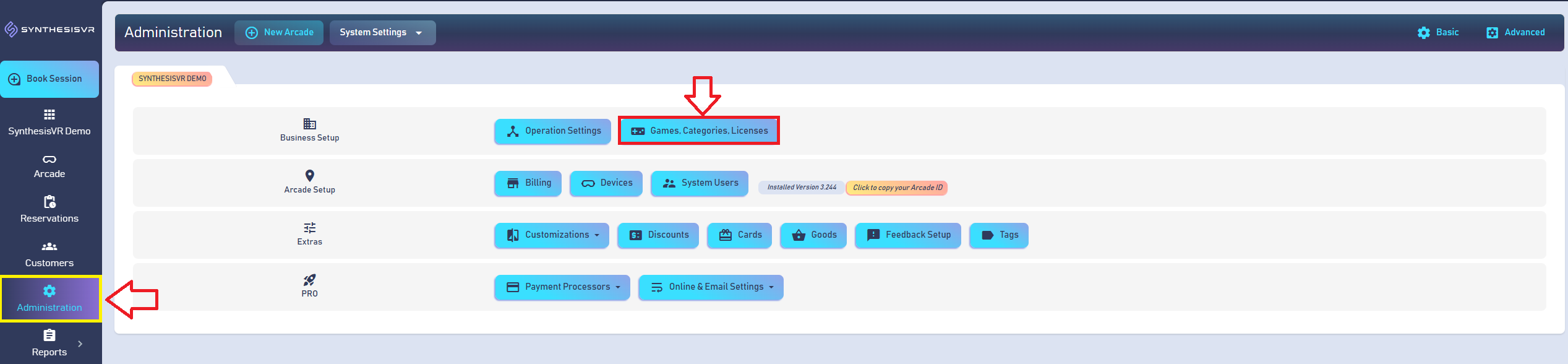
Inside the Games section, you can find detailed information and management options for all your licensed SynthesisVR Games, as well as general information about your non-SynthesisVR licensed titles. This provides you with a centralized location where you can easily manage all VR content used in your business.
Through the Games section, you can see which Games are currently installed on your Game Stations, which titles require updates to the latest version, the categories each Game belongs to, and which Games are not yet installed on your stations.
Additionally, every Game listed has its own dedicated settings panel, allowing you to further customize and manage your content based on your business requirements and how you want to present it to your customers.
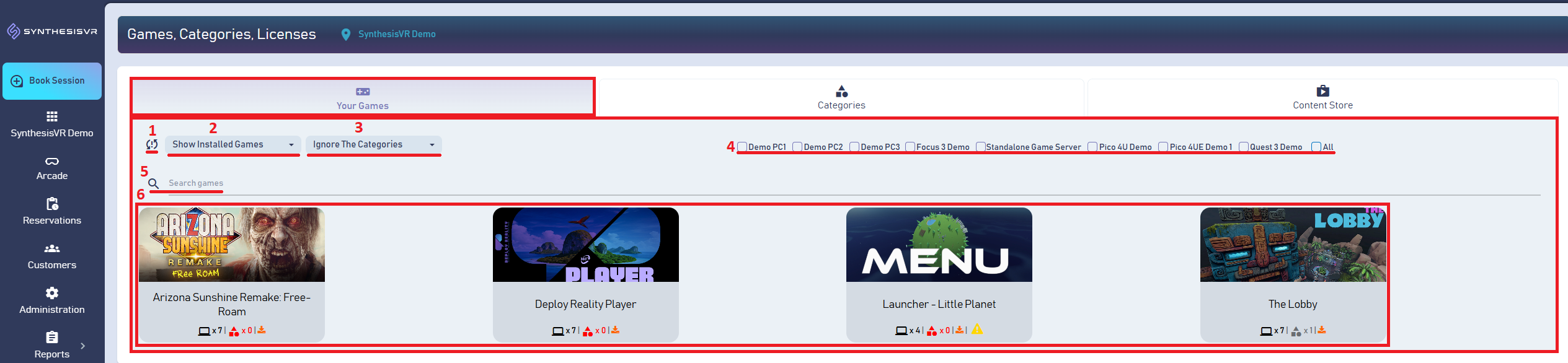
- Remote Batch Refresh - This option allows you to initiate a Batch Refresh on the Access Point for your online Game Stations and Standalone Game Server, enabling you to quickly apply any changes you’ve made to your Games within your SynthesisVR account.
- Game Library Filter - This option allows you to filter your Game Library based on installed Games and pending updates, making it easy to display only the specific group of titles you want to review.
- Game Library Filter - This option allows you to filter your Game Library based on your Categories, making it easy to display only the specific group of titles you want to review.
- Game Library Filter - This option allows you to filter your Game Library based on your SynthesisVR Game Stations and Standalone Game Server, making it easy to display only the specific group of titles you want to review.
- Search Field - This field allows you to search the name of a Game to quickly locate it in your library.
- Game Library - Here you can view all your Games, including both SynthesisVR licensed titles and your own third-party Games.
In your Game Library, you can view information for all your Games, both SynthesisVR licensed titles and third-party Games that SynthesisVR detects once they are installed on your Stations(Game Stations & Standalone Game Server).
From this dashboard, you can easily keep track of the following:
- Which Game Stations have the Game installed
- Whether the Game is assigned to any SynthesisVR Categories
- Whether the Game has an active SynthesisVR license and which license type is active
- Whether the Game is up to date, and on which stations an update is required
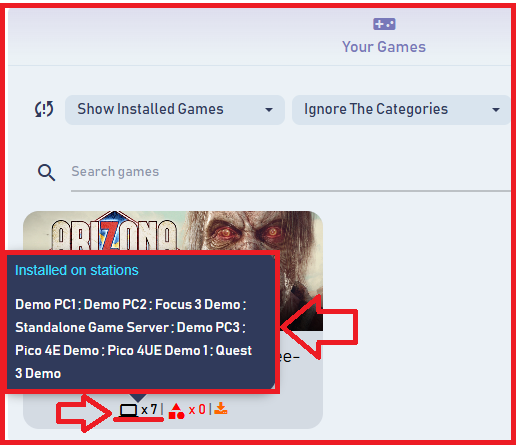
On which Stations is the Game Installed
The first icon under the Game’s title indicates how many of your stations (Game Stations and Standalone Game Servers) have the Game installed. By hovering over the icon, you will see a list of all stations where the Game is currently installed, allowing you to quickly identify where the Game still needs to be installed.
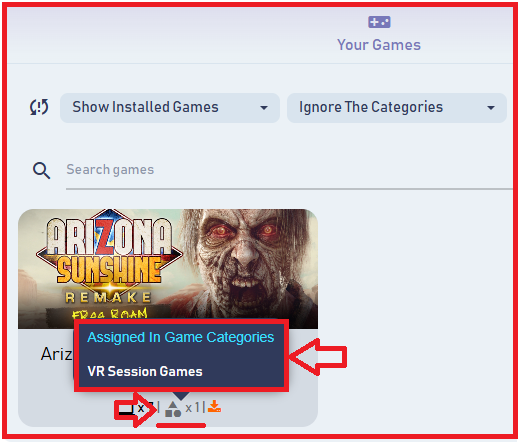
In which SynthesisVR Categories the Game is assigned
The second icon under the Game’s title indicates how many SynthesisVR Categories the Game is assigned to, and hovering over it will display the names of those Categories. This allows you to quickly verify whether the Game has been correctly configured for your Experience Types. Here you can learn more about the Game Categories and the Experience Types.
Which SynthesisVR License the Game is using
- The third icon under the Game’s title indicates which SynthesisVR license is currently active for the Game. A Yellow icon means you have an active license, either a Test Period or a Paid Plan. By hovering over the yellow icon, you can see the exact plan that is active for that Game. You can learn more about the Installation process here.
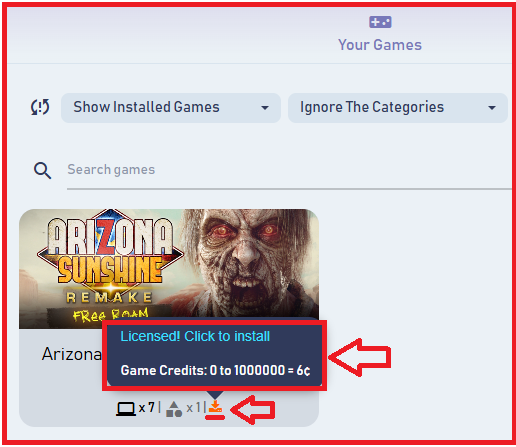
- If the license icon is Red, it indicates that you DO NOT have an active SynthesisVR license for the Game. This can happen if you previously had a license that was automatically stopped (for example, a Test license expiring) or if you manually disabled the license from your Billing page. A red license icon may also appear if you own the Game from another third-party provider, and the same title is also available in the SynthesisVR Web Library. In this situation, SynthesisVR will detect the installed Game and display it with a red license icon to show that the Game exists but does not have an active SynthesisVR license. This does not prevent you from using the Game, since your usage of that title is not tied to SynthesisVR licensing.
However, it is important to note that if you activate a SynthesisVR license for a Game that you already own from another provider, you will be billed for the usage under your SynthesisVR Account, because the Game matches a title in the SynthesisVR Library and now has an active license assigned.
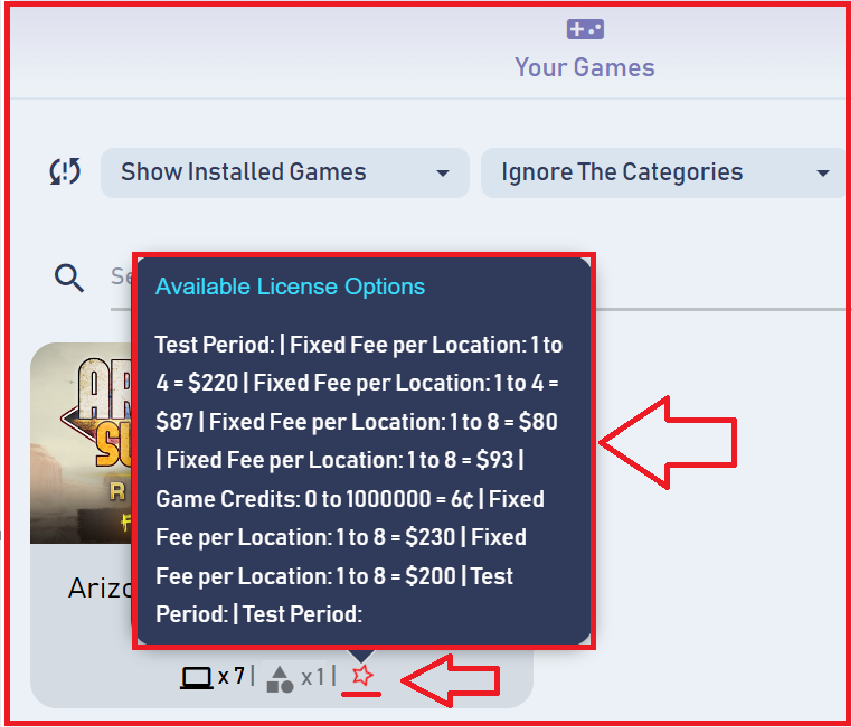
- For third-party Games that are not available in the SynthesisVR Web Library, you will NOT see any license icon at all. These Games are treated as external titles. If you want to manage them through your SynthesisVR Management tools, you will need to activate one of the paid Content Add-Ons, depending on the hardware platform on which the Game is used. To learn more about the Content Add-Ons, please check our dedicated article here.
Which SynthesisVR Games have Pending Updates
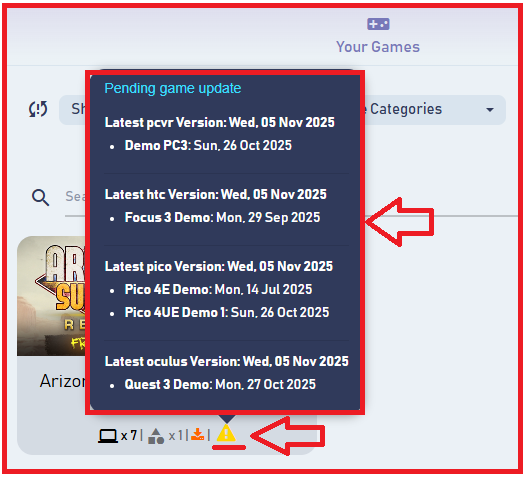
For any of your SynthesisVR licensed Games, you may see a fourth icon under the Game’s title indicating that a pending update is available. This icon will indicate whether the Game needs an update on one or more of your Stations where it is already installed. This helps you easily track which Games are up to date and which require your attention before use. You can learn more about the Update process here.
Every game available in your SynthesisVR account library has its own dedicated settings panel, allowing you to fine-tune how the game is presented to your customers. For SynthesisVR Licensed games that have further Arcade automations you also have the option to control how the game behaves and performs inside your venue.
To access the settings for a specific game, locate the title in your Game Library under the Games, Categories, Licenses page and click on the game to open its settings window.
In the Game Settings window, you will see the following tabs:
- Settings
- Categories
- Extra Settings
- Plugins
- License
- More
Settings Tab
In the Settings window, you will find general options for the game that you can customize. These settings allow you to control how the game is presented to your customers in your arcade and, how it appears through your online systems (if you use SynthesisVR online features). They also allow you to alter how the customer will see and interact with the game once they put on the VR Headset and enter a SynthesisVR Session.
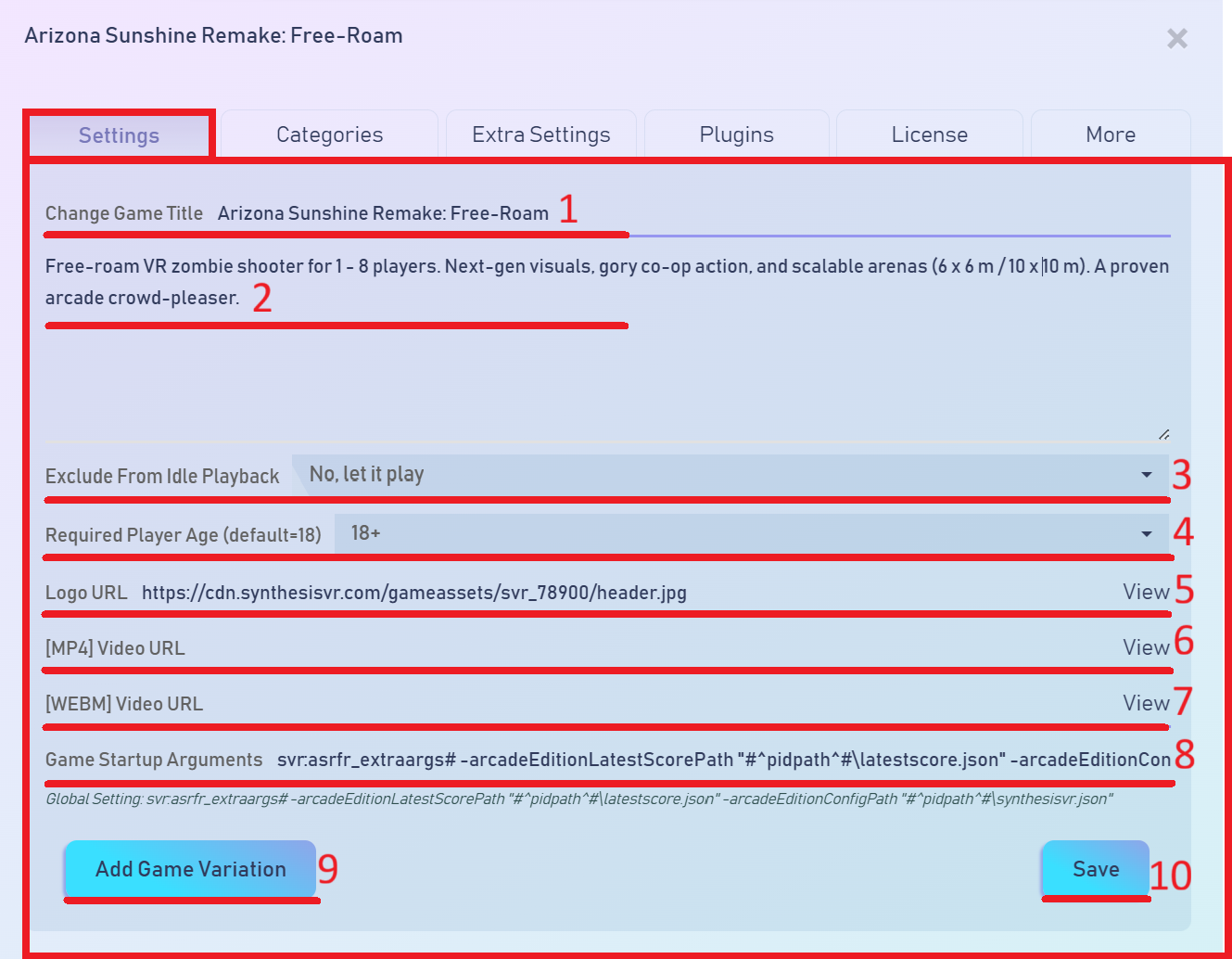
- Change Game Title - Here you have the option to change the default title of the game. This will update how the game’s name appears for your customers on the Game Stations, as well as on any online pages where you showcase the game. Using using SynthesisVR Web features (SynthesisVR Waiver, Online Booking, VR Business website).
- Game description - Here you can add or edit the game’s description. This description will appear to your customers on the Game Stations, as well as on any online pages where you showcase the game. Using using SynthesisVR Web features (SynthesisVR Waiver, Online Booking, VR Business website).
- Exclude From Idle Playback - You can choose whether this game should be included in your Idle Playback video and image rotation. You can learn more about the SynthesisVR PCVR Game Stations Idle Playback functionality here.
- Required Player Age - This option allows you to set a required minimum age for customers to play the game. This setting can later be used as a filter within your Game Categories to control whether the game should appear for your customers. You can learn more about using the Age Filter here.
- Logo URL - Here you can change the default image of the Game, which will be displayed in your Game Sessions as well as on any online pages where you showcase the game. Using using SynthesisVR Web features (SynthesisVR Waiver, Online Booking, VR Business website).
- [MP4] Video URL - Here you can view or add a Video URL in MP4 format, which will be used for your Idle Playback as well as on any online pages where you showcase the game. Using using SynthesisVR Web features (SynthesisVR Waiver, Online Booking, VR Business website).
- [WEBM] Video URL - Here you can view or add a Video URL in WEBM format, which will be used for your Idle Playback as well as on any online pages where you showcase the game. Using using SynthesisVR Web features (SynthesisVR Waiver, Online Booking, VR Business website).
- Game Startup Arguments - Here you can review the startup arguments that SynthesisVR uses when launching the game through the SynthesisVR Management Tool. You can also add additional startup arguments if needed. In most cases, these arguments are automatically added or updated by SynthesisVR during the game’s download and installation process, but they can be modified if necessary.
- Add Game Variation - This option allows you to create a specific variation of the game by selecting predefined launch options, in-game settings, levels, or modes. Each variation becomes its own independent shortcut, enabling you to launch the game directly with those settings applied, without needing to configure them manually every time. You can learn more about the Game Variation here.
- Save - After making the required changes, you can save them, and the window will close automatically.
Categories Tab
In the Settings window, you will find the Categories tab, which displays a list of all Categories you have created in your SynthesisVR Web Management. From here, you can assign the selected game to any Category or unassign it if it is already part of one. Categories are a powerful feature within your SynthesisVR Account, available through the Web Console Operations that can be unlocked with (VR Session & Experience Type Add-Ons). You can learn more about setting up and using Categories here.
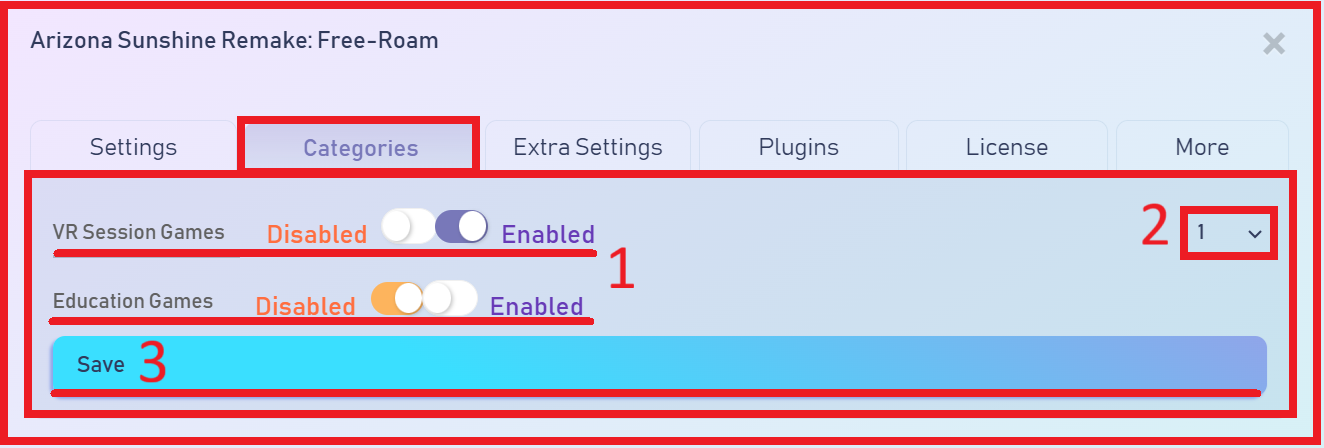
- Categories List - Here you can see all the Categories in your SynthesisVR account, along with the option to quickly assign or unassign the game from each Category.
- Game Position - Here you have the option to set the position in which the game will appear within the selected Category. The position number determines where the game will be displayed among the other titles in that Category.
- Save - After making the required changes, you can save them, and the window will close automatically.
Extra Settings tab
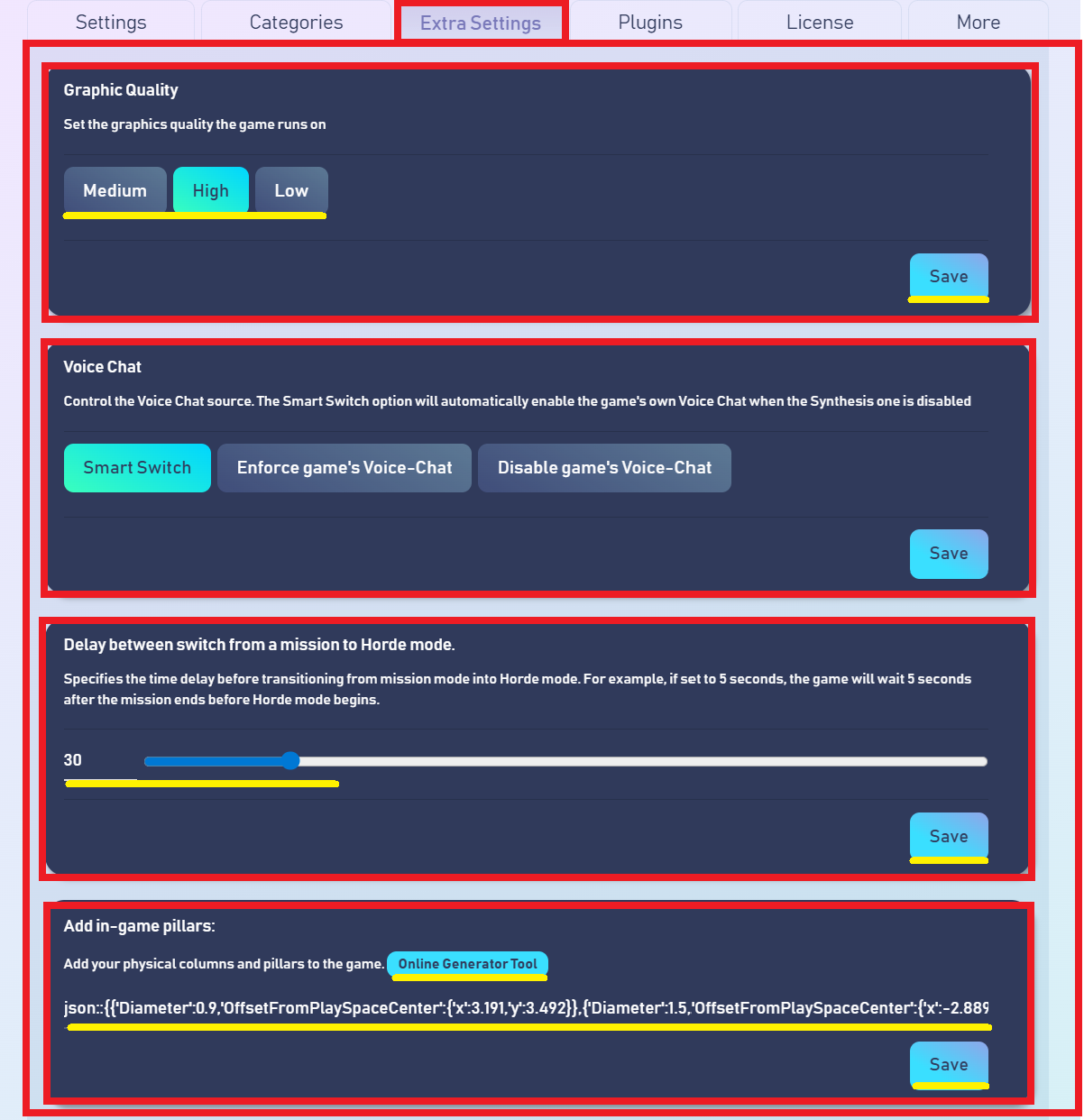
The Extra Settings tab appears in the Settings window for certain SynthesisVR Games where the developers have enabled advanced admin-level configuration. These settings allow the VR business admin to control specific in-game options without needing to launch the game manually to adjust them. These options typically include specific player settings and general performance or gameplay configurations that the venue can enforce. Once saved, the settings in the Extra Settings tab are automatically applied every time the game is launched for your customers.
Plugins tab
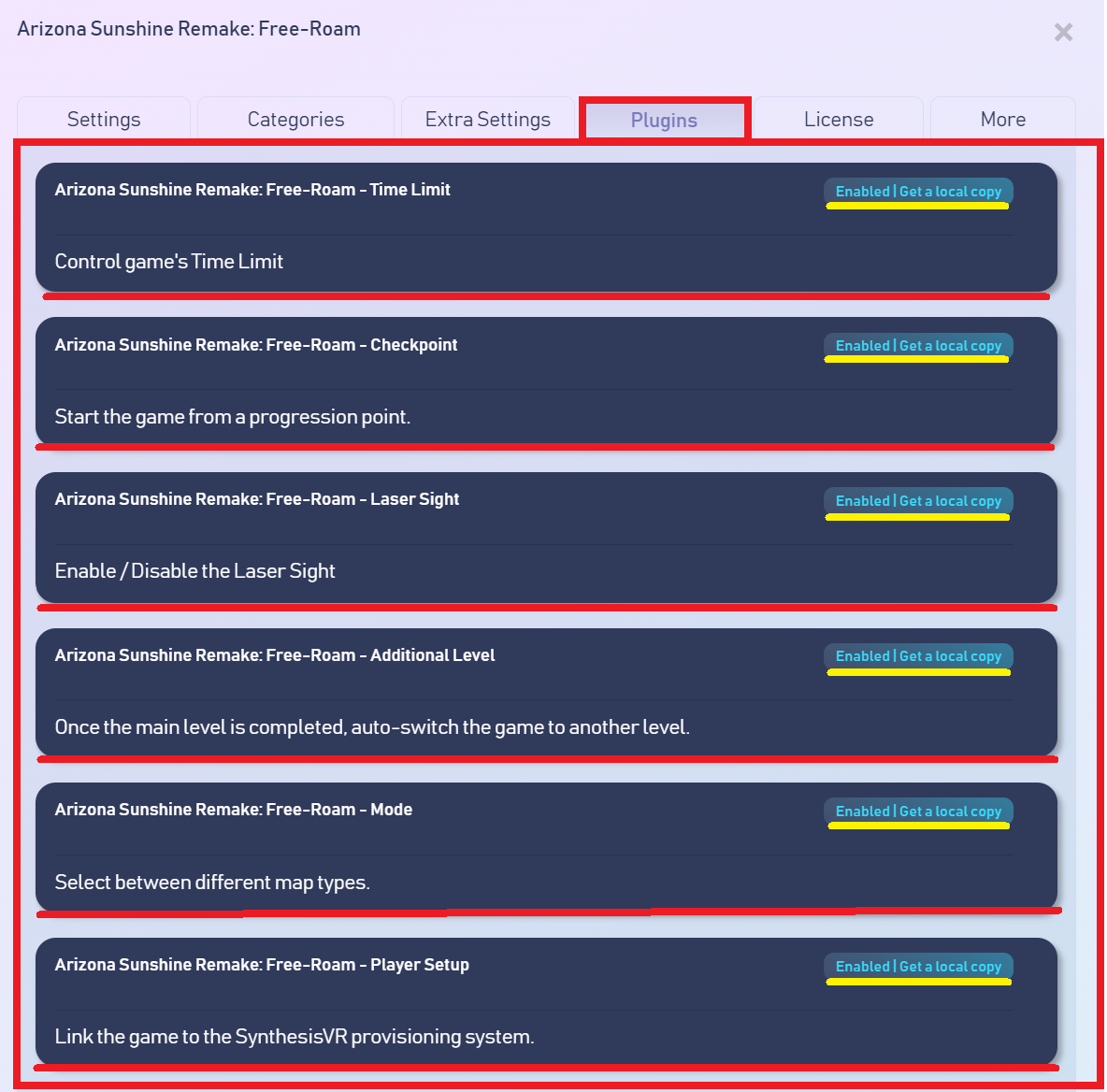
The Plugins tab appears in the Settings window for SynthesisVR games that include additional Arcade automation provided by the developers of the Game. These Plugins allow you to pre-select various in-game options for each player individually from your Admin PC before sending the remote launch command to your Game Stations.
In the Plugins tab, you will see a list of all available Plugins for the Game. They come preinstalled and prepared for you, each with an explanation of what functionality it provides. The plugins are stored in the SynthesisVR Cloud but if you prefer, you can download local copies. Keep in mind that if the plugins are updated by the developer, your local copies will not receive those updates automatically.
License tab
In the License page, you will find information about the active licensing plan you have for the game, as well as details about which of your Game Stations currently have the game installed and which ones do not. You will also find an option to block the game on specific Game Stations, preventing it from being installed on those stations.
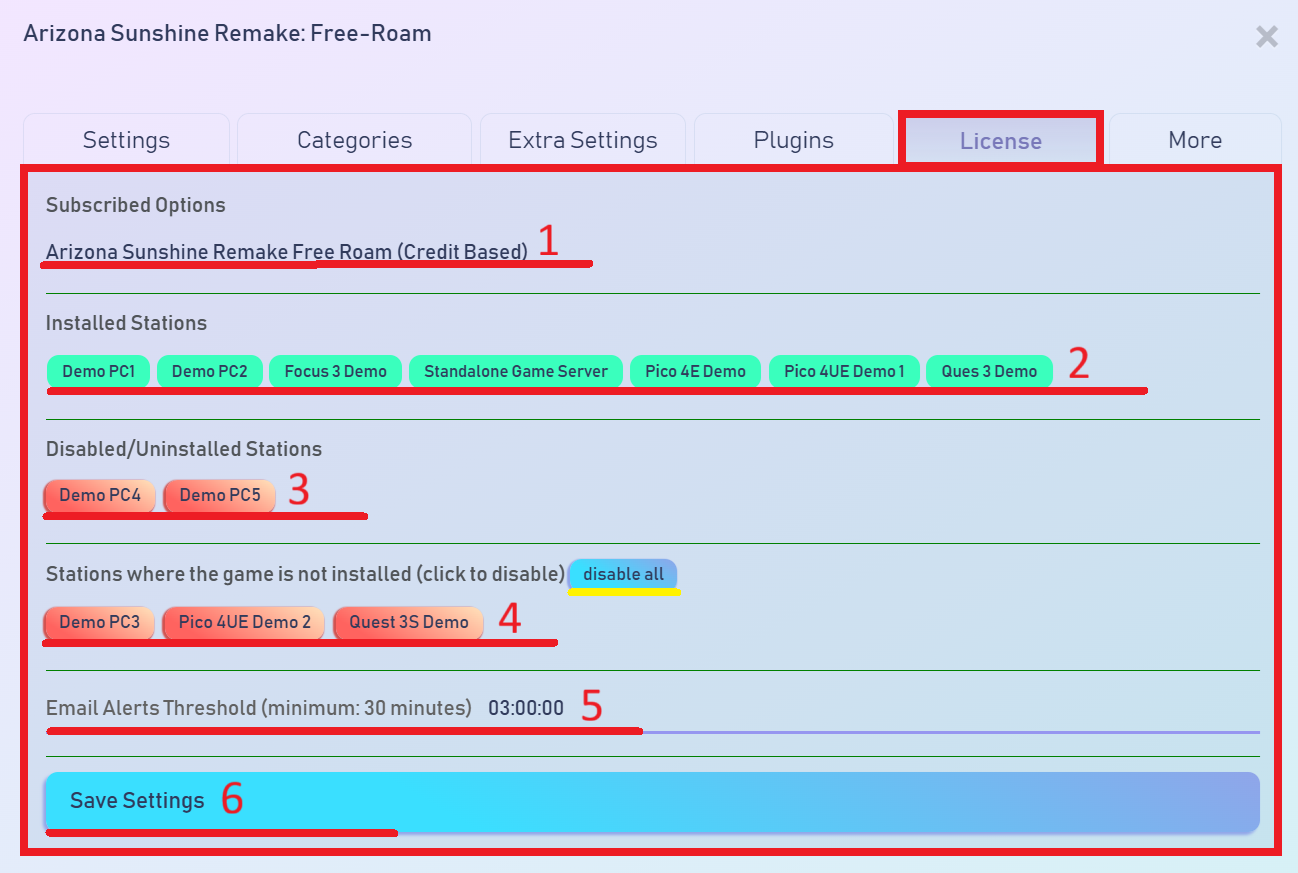
- Active License Plan - Here you can check and confirm the active License plan for the Game.
- Installed Stations - Here you can see a list of all Game Stations in your SynthesisVR account that currently have the game installed.
- Disabled/Uninstalled Stations - Here you can see a list of all Game Stations that you have specifically marked to "Exclude" from having this game. These stations are blocked from the installation process and will not receive the game.
- Stations where the game is not installed - Here you can see a list of all Game Stations that currently do not have the game installed and are available for installation.
- Email Alerts Threshold - This option allows you to set a reminder that will be sent to the email address registered to your SynthesisVR account if the game runs continuously on a given Game Station for longer than the specified time. This is useful in situations where a game encounters an issue or is accidentally left running on a station. Once the time limit is exceeded, you will receive a notification indicating that the game should be stopped. You can also contact our support team on info@synthesisvr.com for further assistance if the usage did not occur during a genuine customer Session.
- Save Settings - After making the required changes, you can save them, and the window will close automatically.
More tab
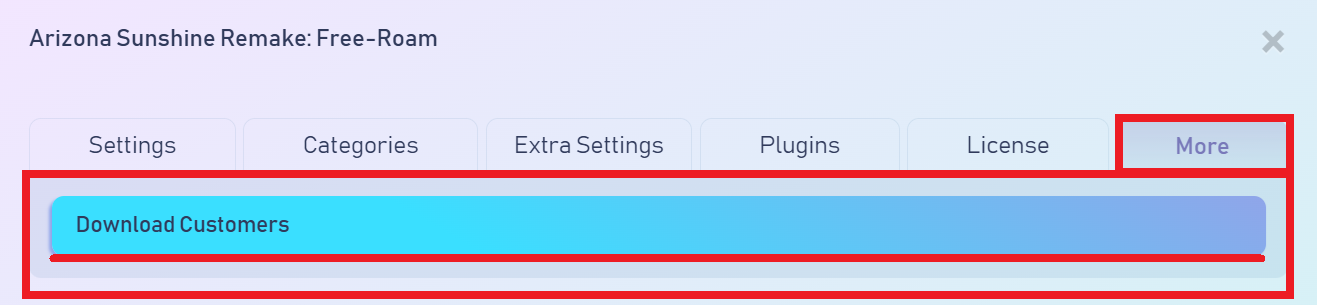
Here you will find an additional option that allows you to download an Excel file containing all customers registered under your SynthesisVR account who have played this specific game, along with detailed information on how long each customer played it through your VR business. Providing you with a convenient report that shows how many customers are enjoying to play this game.
 US
US